Arrange your workspace
Table of Contents
When you open BoxPress.tbx, three windows will emerge on top of one another in the following order:
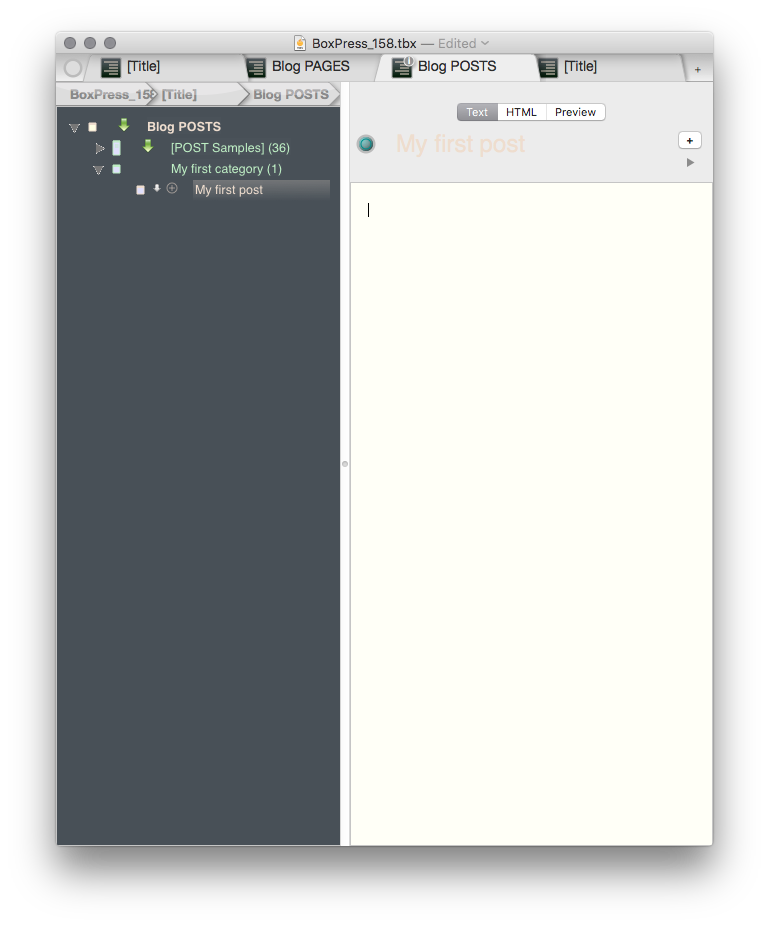
- Content Window. The Content Window is your Planet Focus—with tabs for BlogTopNote, Pages, and Posts. Lots of space for new tabs: just hit the New Tab button.
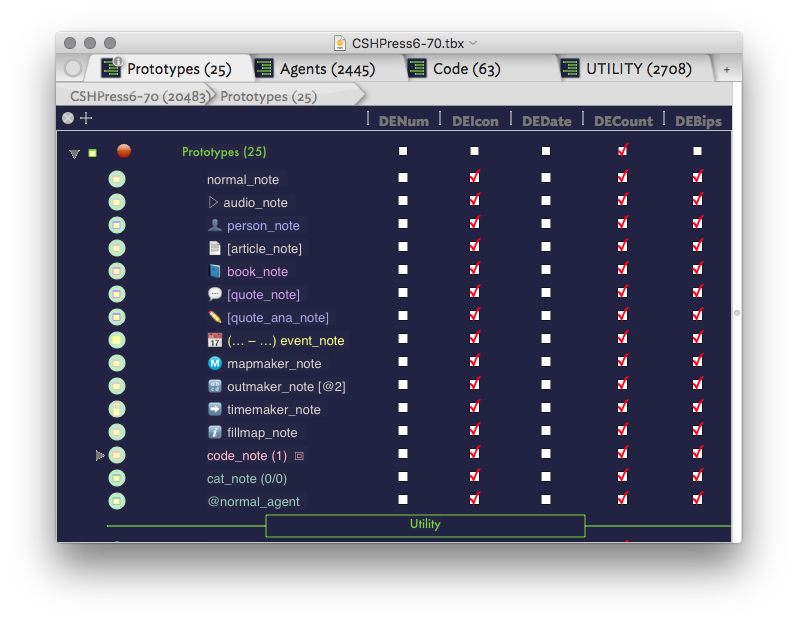
- UX Window. The UX Window controls your user experience—with tabs for Prototypes, Agents, and DisplayExpressions. The Prototypes Tab is also your SmartExpression Control Panel.
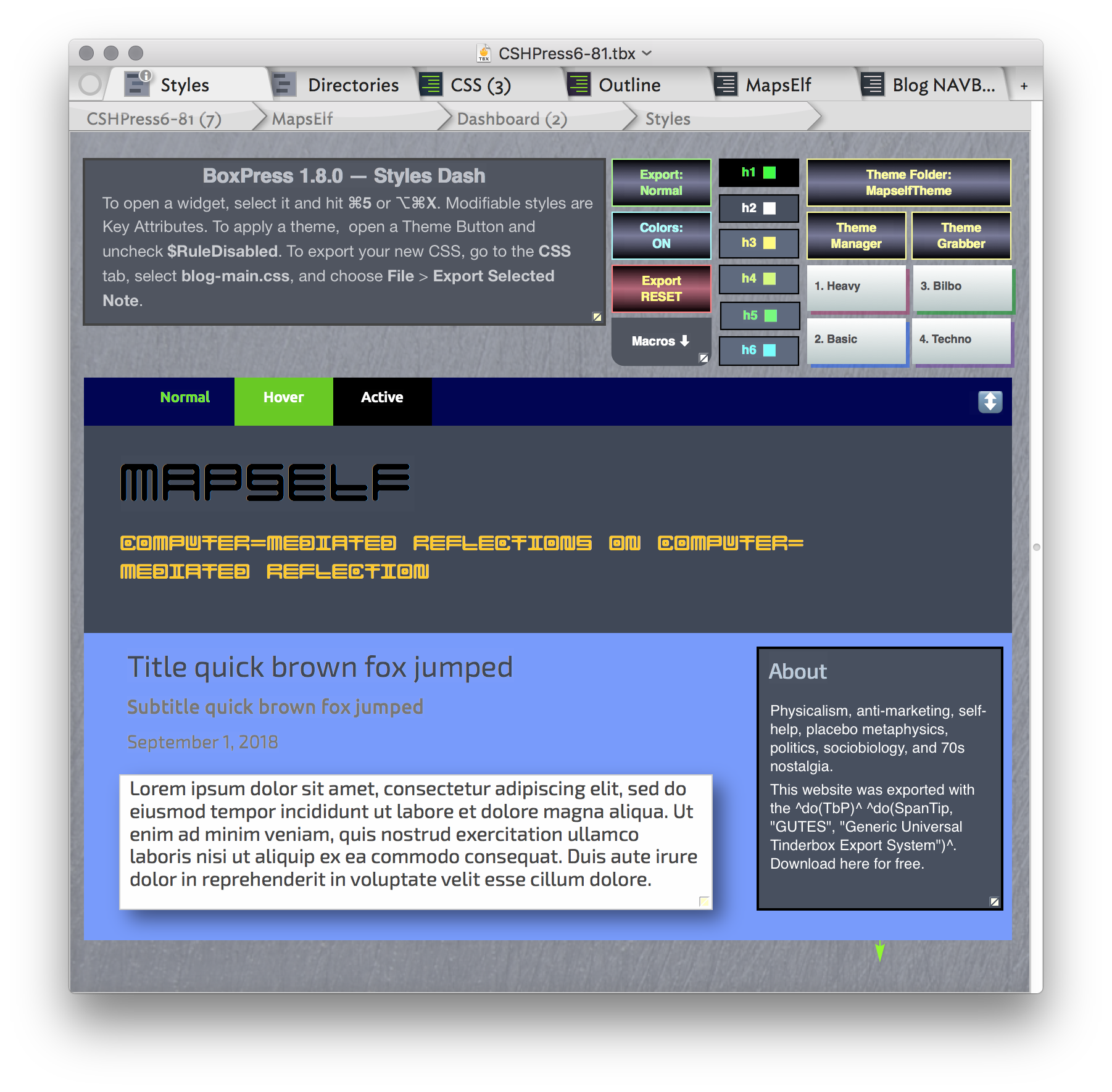
- Export Window. The Export Window controls all things export. The first two tabs are dashboards—Dash: Styles and Dash: Directories. The next three are control panels—Frame Control Panel, Backgrounds Control Panel, and Navbar Control Panel.
To set-up the Perfect Writing Environment, arrange them with the UX Window in the bottom-left, the Export Window in the upper-left, and the Content Window in the upper-right (hover over the image below to reveal the UX Window):
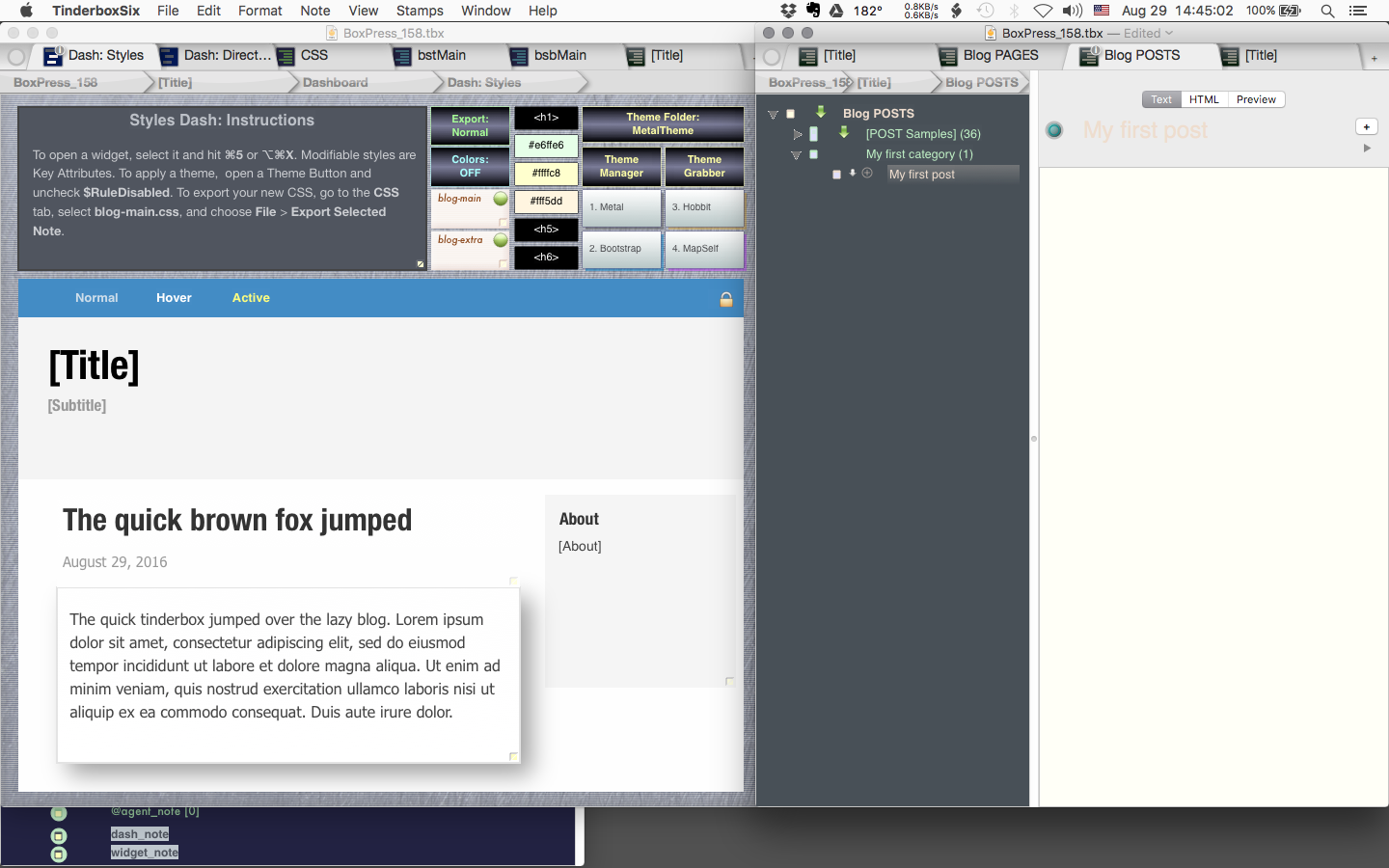
UX Window in the bottom-left, Export Window in the upper-left, and Content Window in the upper-right.
1.
Content Window
The Content Window is where you will do your writing. Your main content tabs are here—
- BlogTopNote—The top of your content hierarchy.
- BlogPAGES—Use for complex, granular, or large-scale projects.
- BlogPOSTS—Use for shorter and stand-alone essays that can be grouped into categories.
I keep the first three tabs set to their defaults. When I want to zoom in and work on something, I click the Add new tab (+) button and then zoom in from there. It’s nice to be able to zoom-up to POSTS and PAGES without having to lose your place, so I always keep the first three up for navigation.
Use ALL_NOTES as your filing cabinet. Please rename it. It is the main container outside of export.
Use Workbench as the staging area in which you zygotes that are assembling themselves.
2.
UX Window
Here are your Prototypes, your Agents, and (most importantly) your Display Expressions.
3.
Export Window
The Export Window contains the Styles Dash, the Directories Dash, CSS, three control panels (Frame, Background, and Navbar & File Name), a Templates Tab, Biolerplate Tab , and Root Tab.
Everything you need to totally personhandle the appearance and structure of your export is here.
Unlike the UX Window, I do not Minimize this window because I set it to the rightmost tab. This lets me use the Export Window as a workspace. I can use it either as a (1) sandbox (or reference) for a structure I’m making in the Content Window, or (2) navigate to [MapSources] and set it to Map View and paste my aliases there to make an HTML Imagemap for the current project in the Content Window.
Review
The tabs in order (left to right) are:
- Styles Dash
- Directories Dash
- CSS Tab
- Webpage Frame Tab
- Webpage Background Tab
- Navbar Tab
- Templates Tab
- Boilerplate Tab
- Root Tab (or Map View)