Automatic Image Import
As of version 2.0, BoxPress now includes the BoxPress Imageport script that lets you import 100s or 1000s of images from the Finder and into Tinderbox for export in seconds!
Setup
Place the BoxPress Imageport.scpt script inside your Finder scripts folder: ~/Library/Scripts/Applications/Finder.
Place the images you want to export inside the BoxPress image folder: BoxPressExport/img/. You can place these directly or inside a subfolder with any name of your choosing.
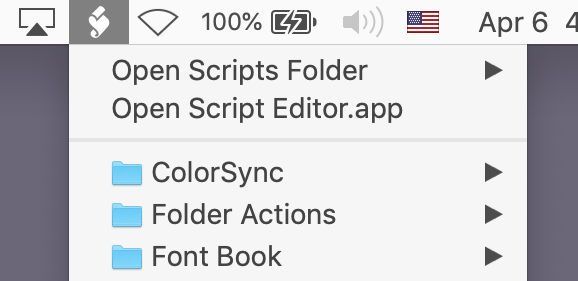
The AppleScript dropdown menu will look something like this.
Make sure the AppleScript menu is in your menubar. If you do not see the AppleScript menu in your menu bar, then search “Script Editor” in Spotlight, run it, and select Script Editor > Preferences …. Then, in the Preferences dialog, click “Show Script menu in menu bar.”
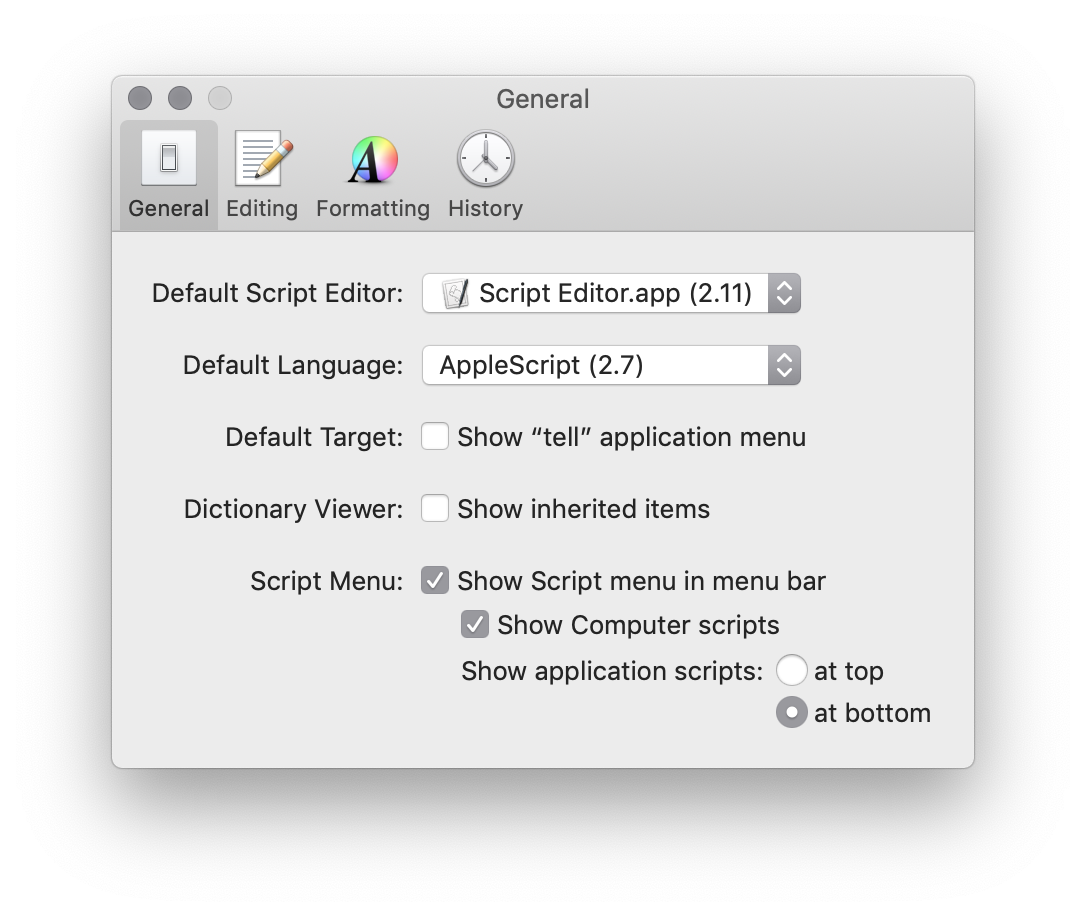
Your Script Menu settings should look like these.
Select images and run the script
Select the image files (in the Finder) that you want to import and click on the AppleScript menu and run BoxPress Imageport (it will be under Finder Scripts). Then choose img for no caption, Fig for caption, Thumbs for thumbnails, ThumbsCap for thumbnails with caption.
Caption Options
- To leave all captions as they are, clear the text field and click “Apply If Empty.” Files without Finder Comments will simply be left blank. (If captions are not desired, be sure to use the IMG option.)
- To edit or add captions one-by-one, click “OK.”
- To apply the same caption to all images, click “Apply To Rest.”
- To apply the same caption but only to images that lack Finder Comment, click “Apply If Empty.”
- Paste your code inside any BoxPress note, and export at will.
Questions
Q: What if I don’t like the order of images in the Finder?
A: If you use Select All, BIS will use the Sort By order of the folder. But if you manually select the files by COMMAND-clicking, BIS will use that!