Applying the Theme Buttons

The four theme presets
The themes that you concoct in the Styles Dash you can name, save, and restore. Please remember that the Banner and sub-Banner areas of your webpages can be filled with images, textures, and colors. The images and textures are stored in the BoxPressThemes folder, inside your img folder. Images and textures must be assigned to their notes with the attributes invoked by the Keys•BKG stamp. For more see the Theme Folder Widget entry above.
All the dash settings except for Banner title, Banner subtitle, and About Blurb text. Omitting the Banner title, Banner subtitle, and About Blurb text is intentional—a “theme” should only change appearance, not text. Of course, you can manually include these as well—just add them manually!
To see how this is done, let’s change the current theme to one of the presets. To change a theme in BoxPress you run a Theme Button. Running a button in BoxPress just means opening it and unchecking its $RuleDisabled key attribute.
STEP 1. Select the the Theme button you want to apply:
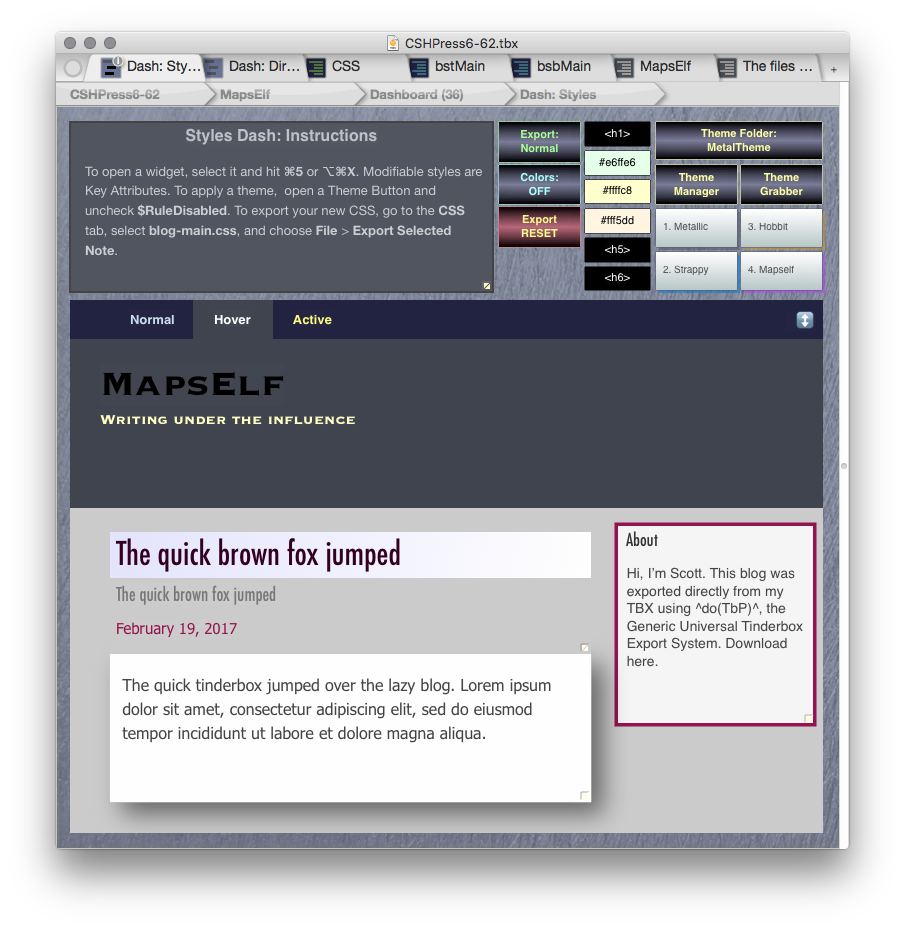
Selecting the theme you want to apply. In this case, the Strappy theme.
STEP 2. Now hit ⌘5 to view that note in the Text Pane. Uncheck the $RuleDisabled key attribute and the theme is applied:
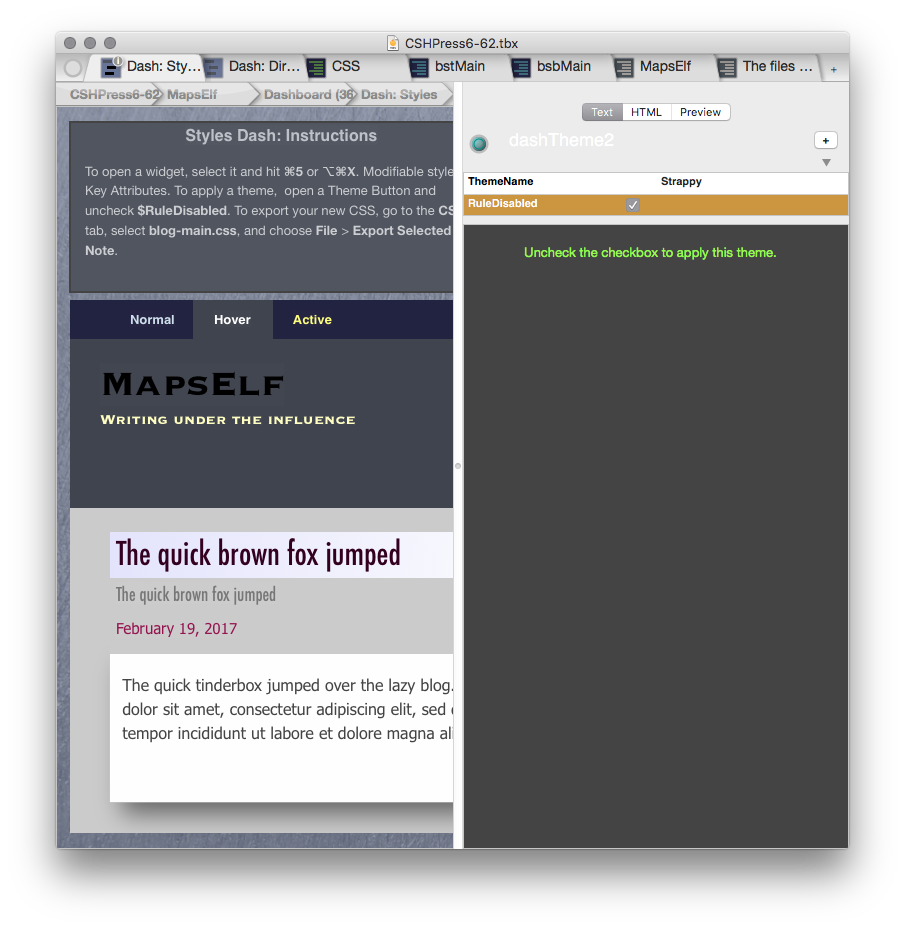
HOVER: Opening a note via the Text Pane, and then clicking the checkbox. The theme is applied instantly.